Beetle configuration
Click on the desired Beetle in the device list to go to its configuration page. All relevant information about the device is displayed there.
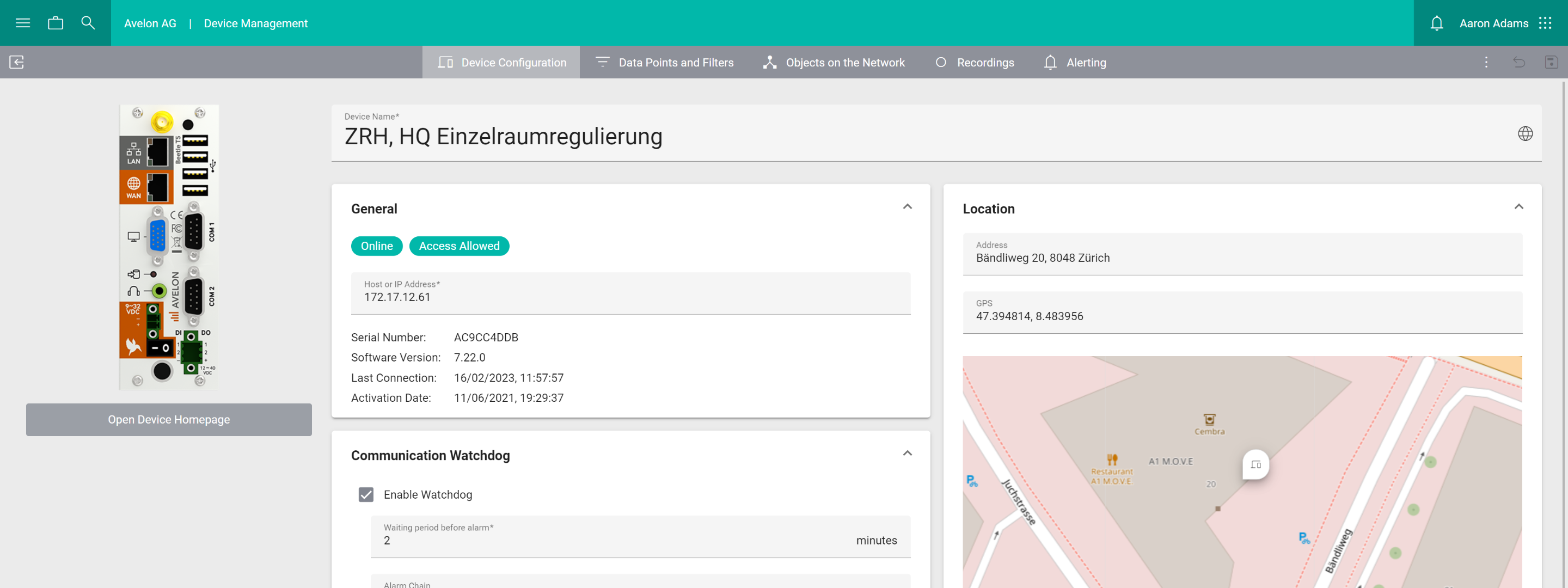
Detailed view of a Beetle T5
General
- Status
Shows whether the device is connected to the Avelon server and whether remote access via VPN is possible.
If the device has recently connected to the server, it is shown as Online, otherwise it is shown as Offline.
Access Allowed indicates that remote access is enabled and you can access the device remotely via Avelon Connect if the device has an “Avelon Connect” license assigned (see Licenses).
Access Denied indicates that remote access is disabled on the device, so it cannot be accessed remotely via VPN, neither by the system nor via Avelon Connect. In this state, the device won’t be able to send live values to the server, and recordings and alertings cannot be edited, either. See Remote access on how to manage remote access on the Beetle.
- Host or IP Address
Displays the current host name or IP address through which the device can be accessed.
- Model
The hardware model of the device. The most recent models are Beetle T6 and Beetle T5.
- Serial Number
The serial number is used to uniquely identify the device. It is also printed on the sticker attached to the housing of the appliance.
- Software Version
The software version that is currently installed on the device. The first two numbers of the software version (e.g. 7.30.*) must correspond to the software version of the Avelon server to which the device is connected. You can see the current software version of the Avelon server by opening the user menu at the top right and then clicking on System Information. If the software version of the device is different from the software version of the server, please get in touch with Avelon support to update the device.
- WAN MAC Address
The MAC address of the device’s WAN (Wide Area Network) interface. The respective network port is labeled with WAN.
- LAN MAC Address
The MAC address of the device’s LAN (Local Area Network) interface. The respective network port is labeled with LAN.
- Last Connection
Indicates when the device last connected to the Avelon server.
- Activation Date
The date when the device was activated on the Avelon server.
Location
- Address
The location address of the device. If you fill in this field, the device will be displayed on the map widget and in the map navigation.
- GPS
If the address input above is insufficient, you can also specify the location of the device using GPS coordinates.
- Time Zone
The time zone in which data point measurements are recorded. This setting will apply to all data points of the device.
Alerting
- Enable Watchdog
The communication watchdog checks if the device is connected to the Avelon server and triggers an alarm if it is not. The watchdog must be activated and configured separately for each device.
- Waiting period before alarm
If a communication interruption is detected, the system will wait for this amount of time before an alarm is sent. This can prevent too many alarms from being triggered if the connection is frequently interrupted for only a short time. The alarm timeout must be at least 2 minutes.
- Alarm Chain
Select the alarm chain that should be escalated in the event of an alarm.
Warning
Watchdog alarm tickets cannot be closed until the device sends an acknowledgment that the alarm is gone and that the connection with the server is reestablished. As a result, when trying to close a ticket prior to device acknowledgment, the following error message is displayed: “This ticket cannot be closed. The alarm must be acknowledged by the device first”.
Device access
Here you configure which user groups are allowed to access the device and its data points. If users should see data points or their recordings or live values, they need to have access to the respective device on which these data points are located.
To add a user group, click on Add User Group and select a user group from the list. All users in that user group will get access to the device. To remove a user group, click on Remove next to the corresponding user group.
Granting access to a device also enables access to the device via our public API.
Note that users with the action right “Show all devices” can see all devices of the client, regardless of their respective user groups.
Note
Avelon Connect displays only devices that have an Avelon Connect - Remote Access license assigned. In addition, the logged-in user must have the access right “Remote access to authorized devices” assigned via their user role.
Notes
Here you can store any notes and remarks relating to your device.
Additional functions
- Open Device Homepage
Opens the web page of the device. Further settings are available there.
Further settings are available via the menu More at the top right:
- Manage Remote Resources
Define which services on the local network can be accessed via the device by entering their IP and port number.
- Show PAT rules
View the PAT (Port Address Translation) rules that are currently active on the device.
Note
The rules can only be edited directly on the Beetle’s web interface. For more information, refer to the Port Forwarding section of the Remote Access chapter in the Beetle User Manual.
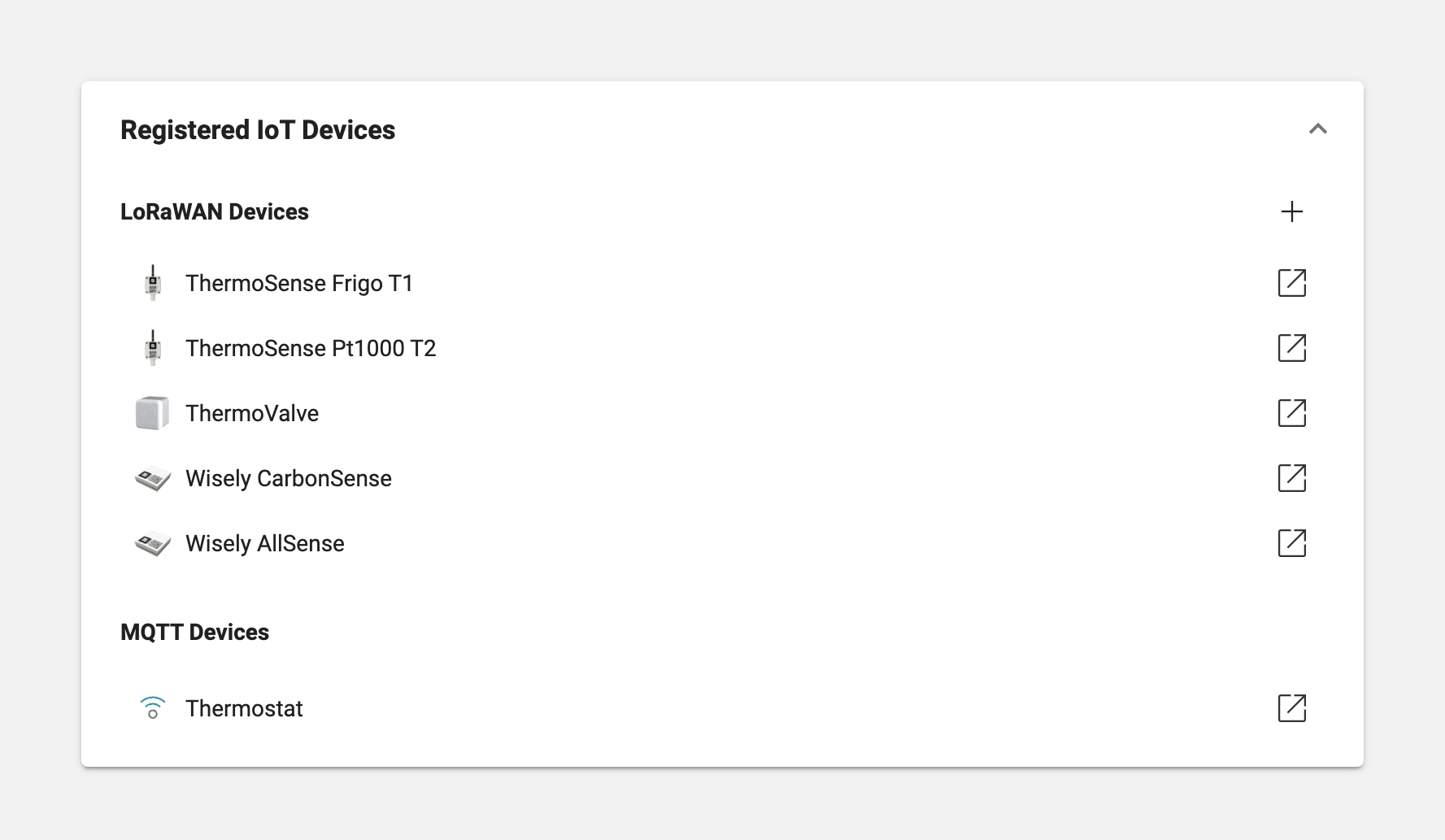
Registered IoT devices
The Beetle can act as a server for LoRaWAN devices, or as a broker for MQTT devices, and all linked IoT devices will be listed on this card.
- LoRaWAN Devices
LoRaWAN devices that use this Beetle as their LoRaWAN network provider will be displayed here. You can add a LoRaWAN device to the list directly by clicking on the Add button at the top, or set the Beetle as a LoRaWAN network provider on the configuration page of the LoRaWAN device.
- MQTT Devices
MQTT devices that use this Beetle as their broker will be displayed here. To link an MQTT device with this Beetle, go to the configuration page of your MQTT device. On the MQTT card, choose Beetle as your Broker Type and select the Beetle in the Beetle dropdown.
Software update
If your Beetle is connected to Avelon Cloud, it will check for software updates on a regular basis. When a new version is available, it will download and install it automatically and reboot afterwards. This usually happens during our regular maintenance windows which will be announced through our maintenance mailing list.
During the update, the Beetle will continue to work as expected. However, there will be a short interruption of service during the reboot at the end of the update, which should only take a few seconds.
Licenses
See Licenses.